Troubleshooting Altium
If you do not know what you are doing, ask a TA.
We are literally paid to help you.
That being said, the following are quick guides on solving common problems. Try these first.
Common minor problems
- Help, I can only see top / bottom layer tracks
- Press
SHIFT-S.
- Press
- Help, I can only see one track
- Right click on empty space and then click “clear filter”.
- Help, I am in some kind of 3D view
- Press
2.
- Press
How to fix clearance issues between pins of the same component
- In the top bar press open “Design \(\rightarrow\) Rules”
- Go to “Clearance”
- For each of “Schematic Clearance Constraint \(n\)” where \(n\) is some number, open it and tick “Ignore pad-to-pad clearances within a footprint”
- Press “apply” and then “Ok”
How to fix the getting kicked off workspace problem
- Close Altium.
- Open Altium.
- IMMEDIATELY OPEN COMPONENTS BEFORE ANYTHING ELSE OPENS.
- Reconnect to workspace.
- Login.
How to fix the lastconnection.data error
We do not know why this works, only that it does most of the time. Please follow these steps as closely as possible.
- Open the components menu.
- Click the three horizontal lines (hamburger) button.
- Select “libraries preferences”
- Open the “Installed” tab.
- Select all libraries.
- Press “remove”.
- Press “Install”.
- Open the K drive libraries path.
- Select all libraries under “Altium Libraries”.
- Press “Open”.
- Close Altium.
- Reopen Altium
- Immediately select the components tab
- Log in.
- Connect to the AUT workspace.
How to add an External File in Altium
For a file to be properly included in an Altium project, it must meet three criteria:
- It must be in the correct folder.
- It must not be a referenced file.
- It must be added to version control.
You must make sure that any externally added file meets these conditions.
Moving a file to the correct folder
Once you have your project open, right click on it and select “Explore”
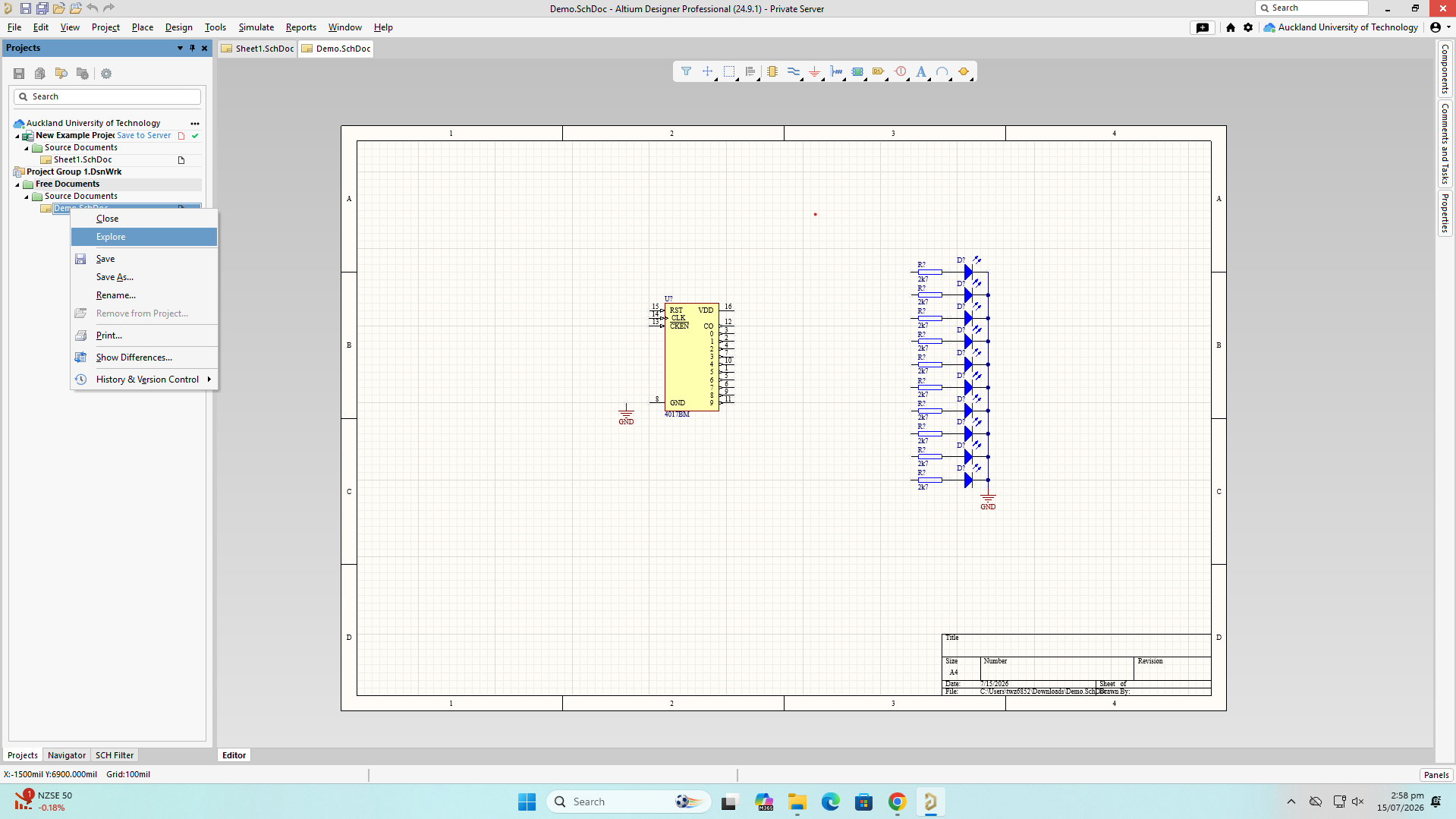
This will open the file explorer location for the project you are working on.
Now, move the file from its original location into the project:
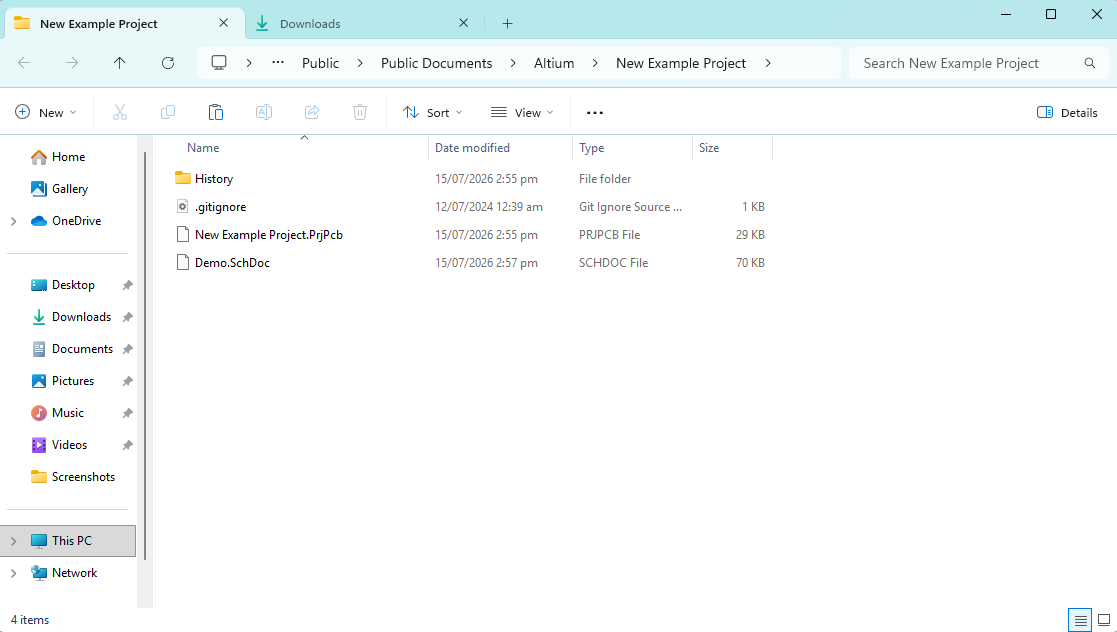
(Demo has been moved from downloads into here)
Adding the file to the project
Once that is done, right click on the project and click “Add existing to project”
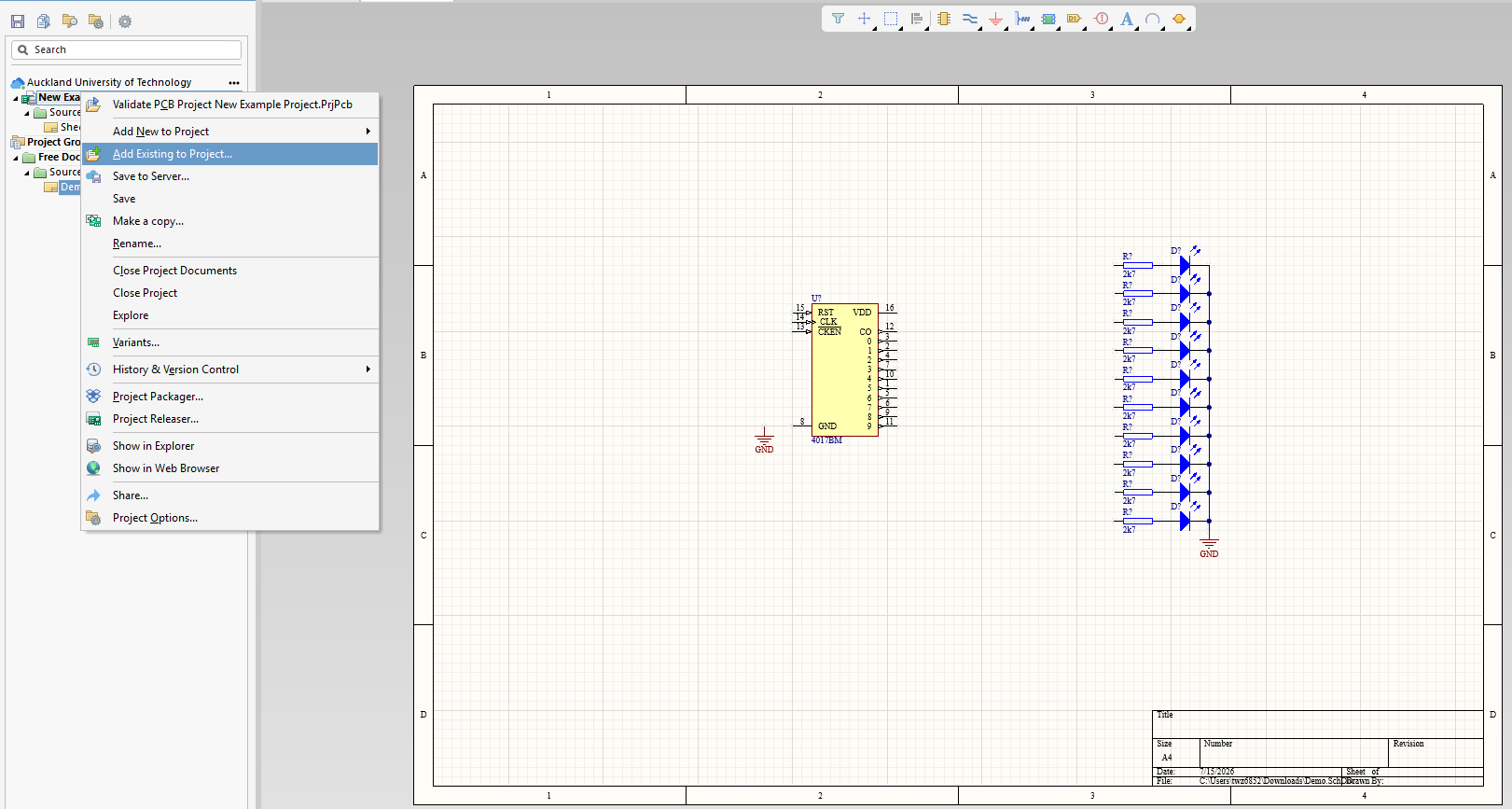
Select the new file, and press “Open”.
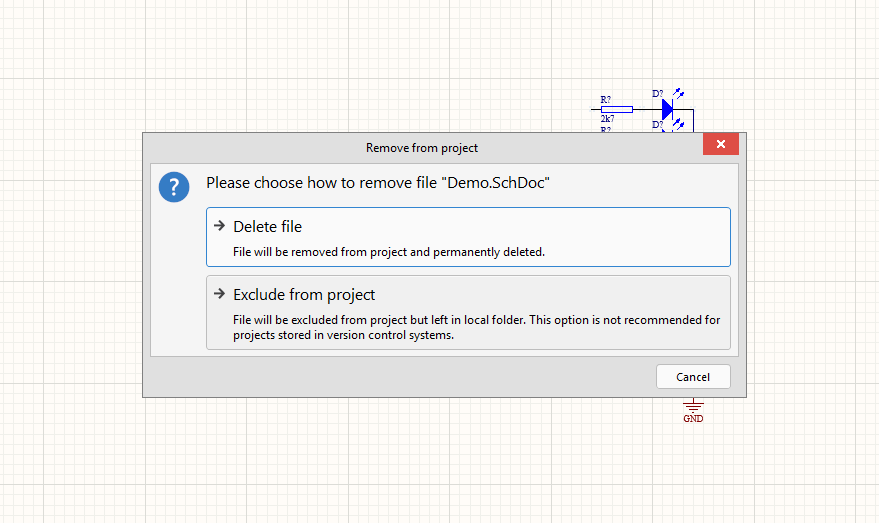
Ensure the file icon does not have an arrow on it like this icon:  If it does, you need to go through the “Add existing to project” step again. Then, remove the old referenced file. Ensure you press “Exclude from project” instead of deleting it, to make sure that you can recover from mistakes on this step.
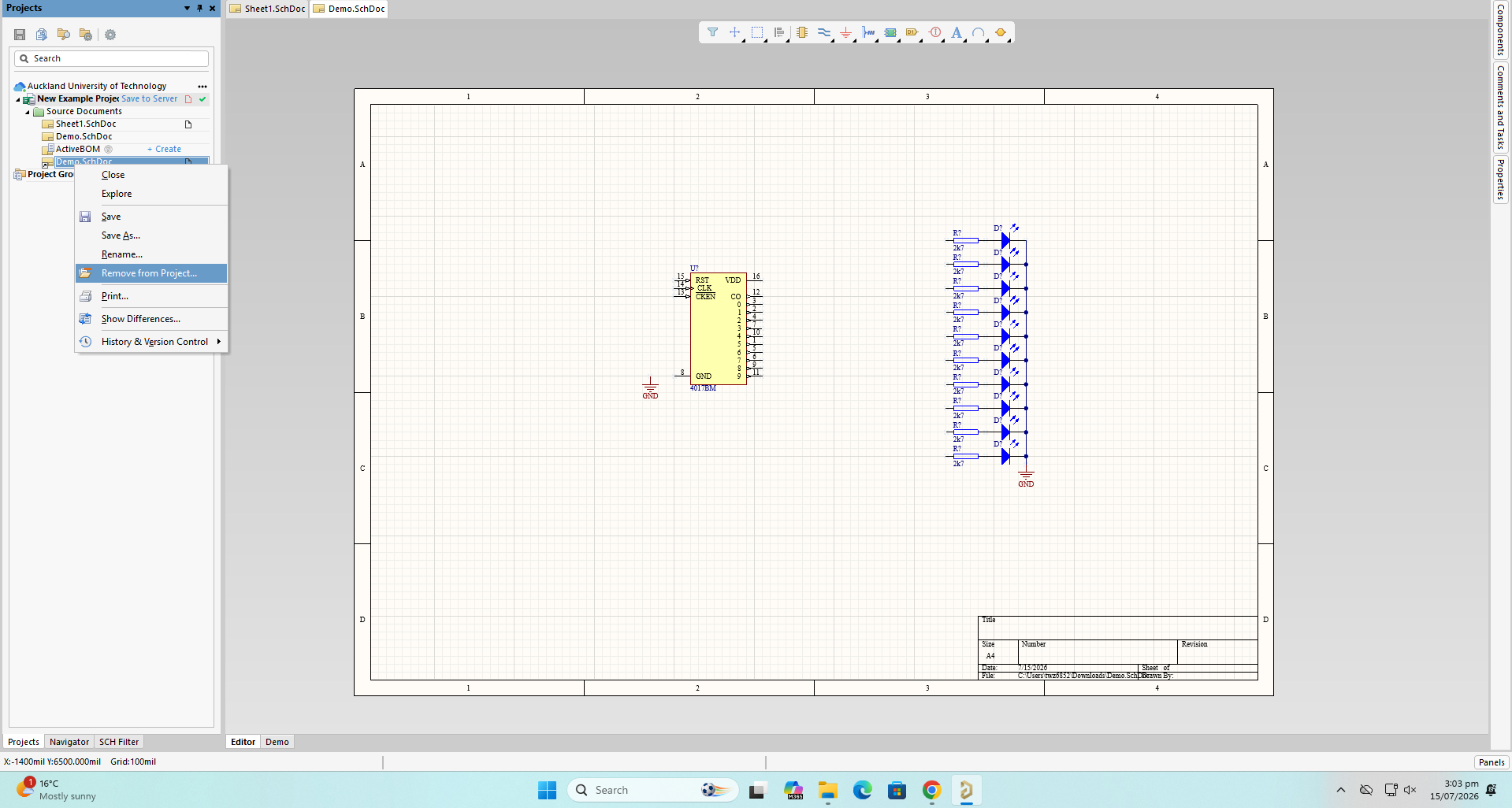
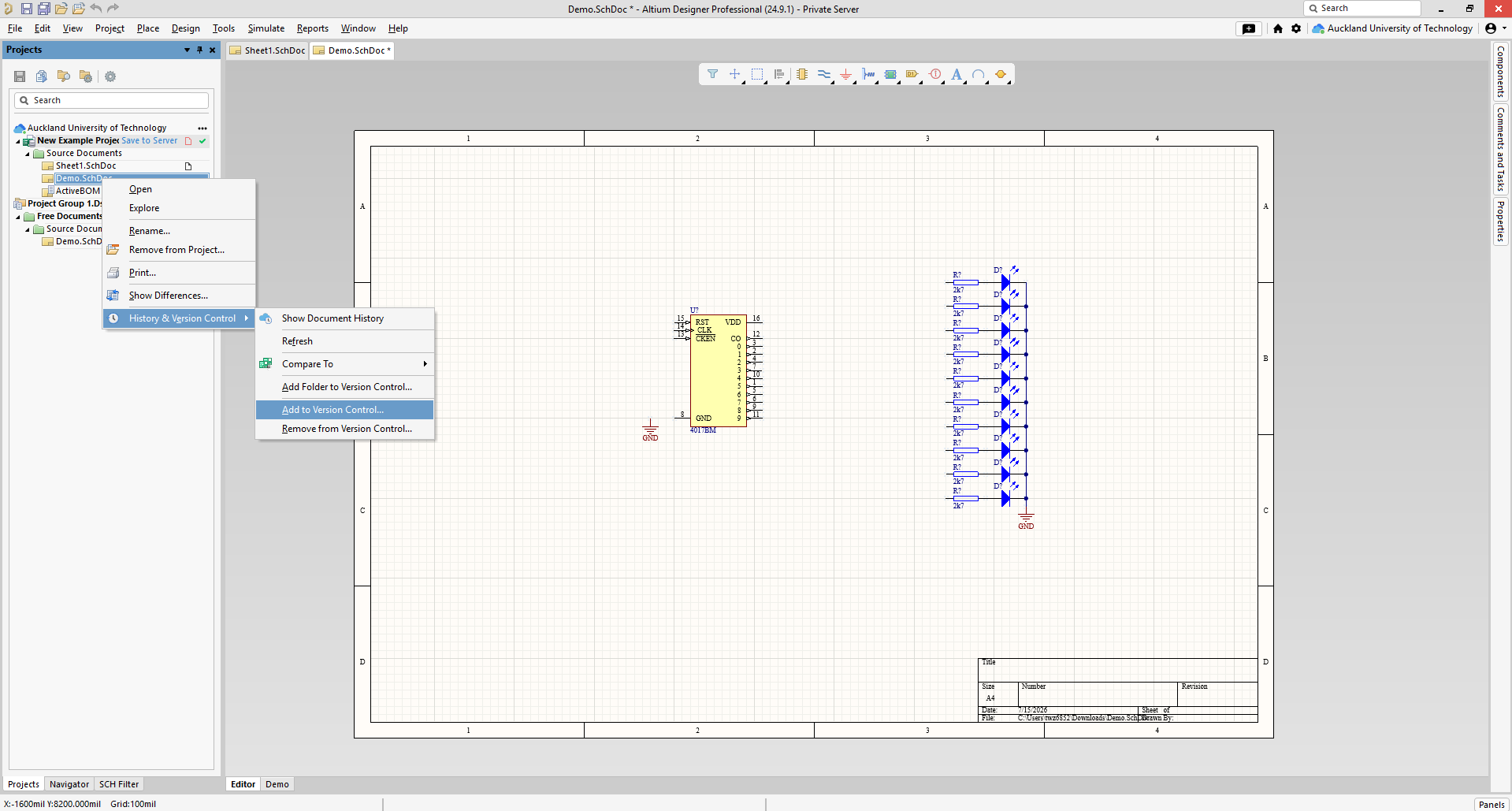
Once that is done, add it to version control by right-clicking it, going under History and Version Control, and selecting “Add to Version Control”
Saving to Server
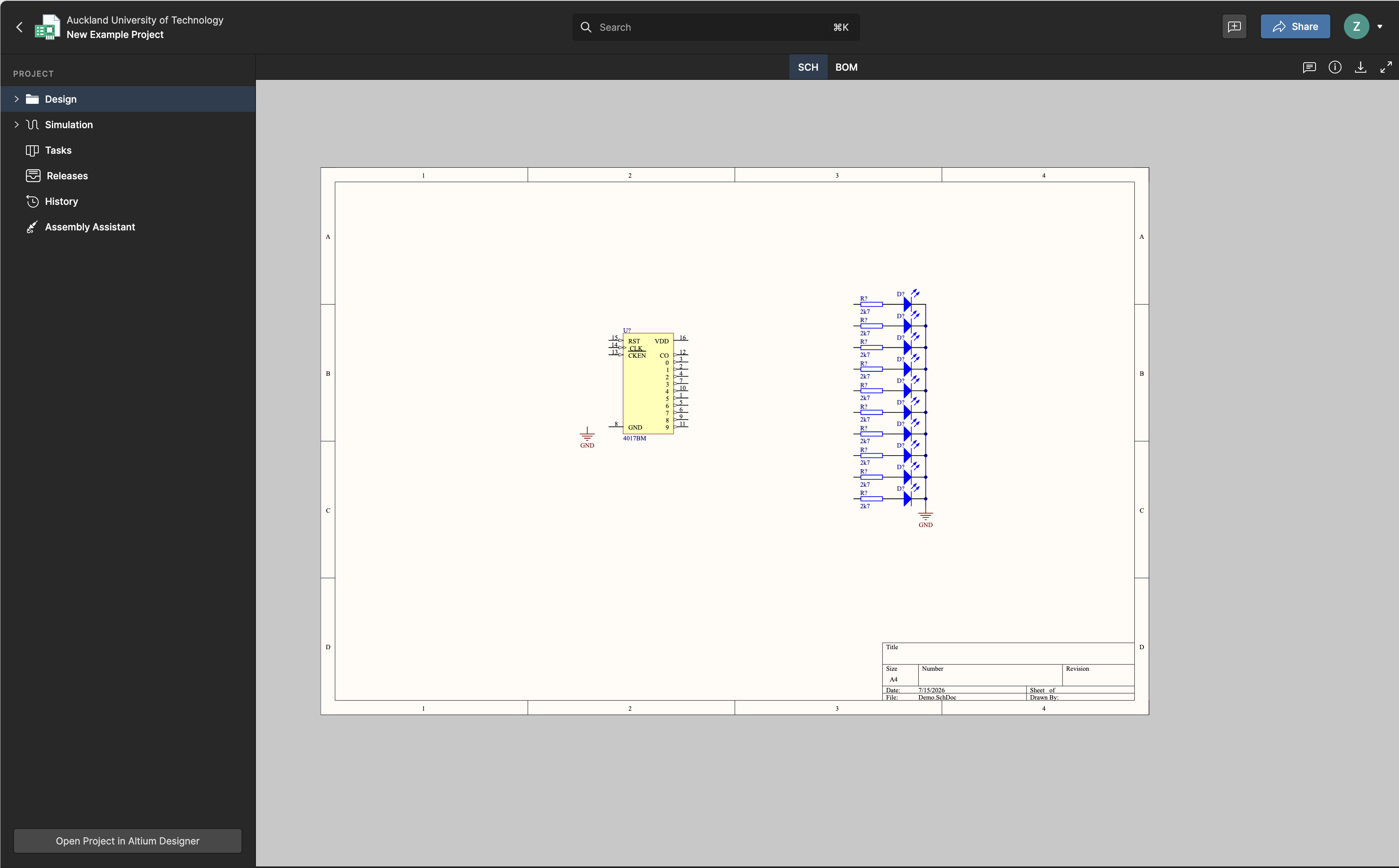
Finally, right click “Save to Server” next to your project, add a meaningful commit message, and save.
Checking you have done it correctly
Open up Altium 365 and check your project has the file you added, if not call over a TA.
Installing the local component libraries
We will use a set of libraries in the K: drive, which is a network drive common to all engineering computers at AUT.
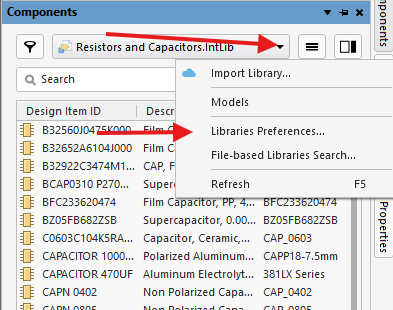
To install them, open the “components” panel on the right
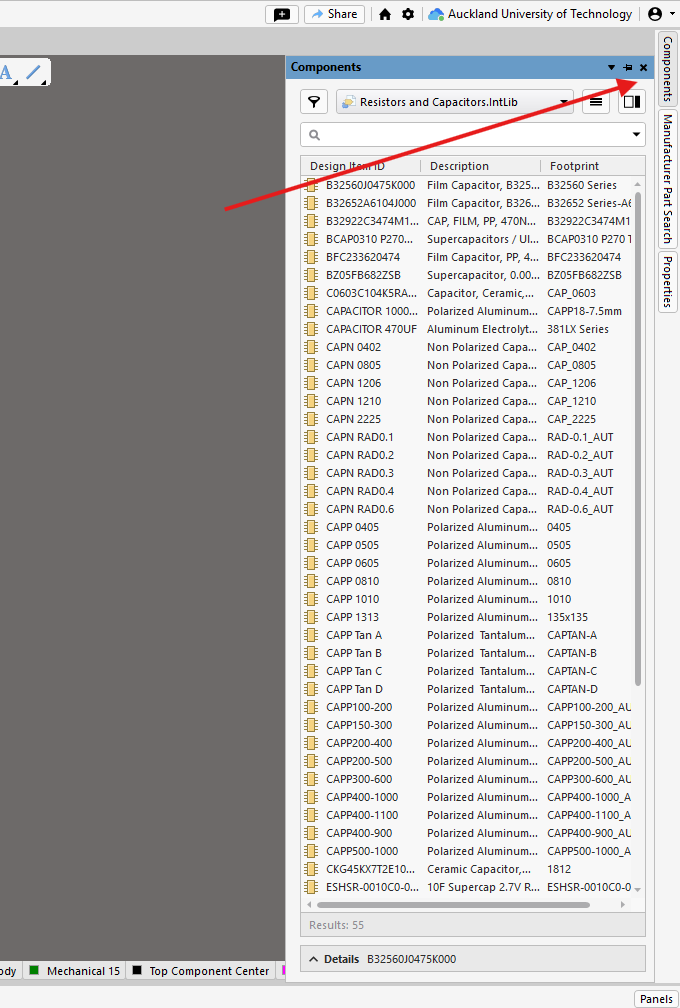
Then, click the three lines (hamburger) icon on the top right, and click “Libraries Preferences”
Under the installed tab, click “Install”
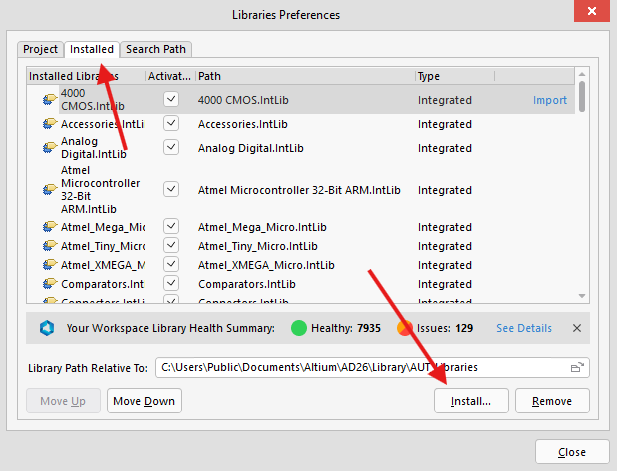
This will then open a file picker. Open “This PC”, and then follow this path:
K:/
└── WELLESLEY COPY/
    └── DESIGN & CREATIVE TECHNOLOGIES/
         └── School of Engineering/
             └── Electrical & Electronic Engineering/
                 └── Resources/
                     └── AltiumLibraries/
                         └── 2026S2.IntLib
                         └── Altium Libraries/
                             └── *All other libraries*
For projects one and two, you will use 2026S2.IntLib1
1 Project two has components listed as being in “2025S2.IntLib”, this is a typo. Use 2026S2.IntLib
For reinstalling the altium libraries as described in fixing the lastconnection.data error, use the libraries in the AltiumLibraries/Altium Libraries path.